Start with a working local dashboard
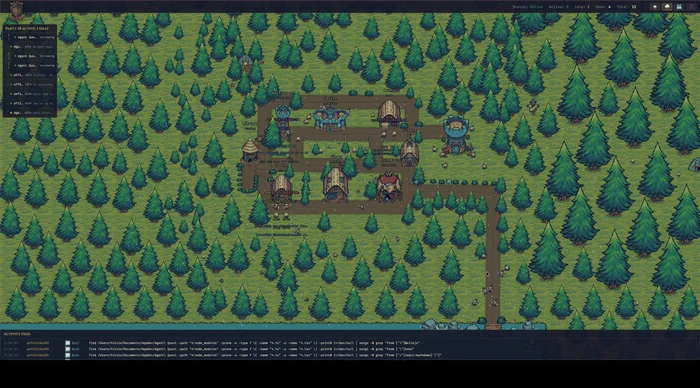
Before adding another device, confirm that Agent Quest works on the host computer at http://localhost:4445 and shows a session you recognize. That separates session-discovery problems from network problems.
This walkthrough follows the repository’s documented LAN mode and the client’s host-resolution code. It is not a claim of a separate iPad app or a device-specific compatibility test. Browser behavior and local firewall settings can affect the result.
Enable LAN access deliberately
The documented default keeps the dashboard on localhost. To make it reachable from another device, stop the instance you started, then run the following from your Agent Quest directory:
AGENT_QUEST_LAN=1 bun startIf you installed the optional launcher, the equivalent is AGENT_QUEST_LAN=1 agentquest. Use one startup method, not both simultaneously.
LAN mode exposes session details, which can include tool calls, file paths and command output, to other people on that network. Use a trusted private network. This is not a public hosting setup: do not forward these ports to the internet or treat the dashboard as an authenticated remote workspace.
Open the host’s URL on the iPad
Connect the iPad to the same network as the host. When LAN mode starts, the server prints reachable addresses. Open the UI address, with port 4445 by default, in the iPad browser. For example, if the host reports that address, it could look like:
http://192.168.1.42:4445The number above is an example. Copy the address printed by your own instance. Do not type localhost:4445 on the iPad: that would look for a server running on the iPad itself.
With default client configuration, the browser uses the page’s hostname for its API and WebSocket connections. Custom VITE_SERVER_URL or VITE_WS_URL settings can override that behavior, so review them if the page loads but no updates arrive.
Verify the view and close it safely
Produce a small, recognizable activity in a coding session on the host and check whether it appears in the iPad view. You are verifying both the loaded interface and its live connection. Continue entering prompts, reviewing code and approving actions in your original coding tool.
If the page is unreachable, check the host’s startup output, the selected address and firewall permissions. Guest Wi-Fi and network isolation can prevent devices from reaching one another even when the network names look similar. The backend and client must both be reachable for a complete live view.
When finished, stop the LAN-enabled instance. If you used only the one-off command above, a later ordinary start returns to the normal configuration. If you separately saved LAN settings in environment files, remove that opt-in there as well before assuming access is local-only.
Based on the project README and source at revision 6c32b29, reviewed 10 October 2026. Check the current repository for later changes.
Try it with your own sessions
Next: From Session Logs to a Live Village: How Agent Quest Works