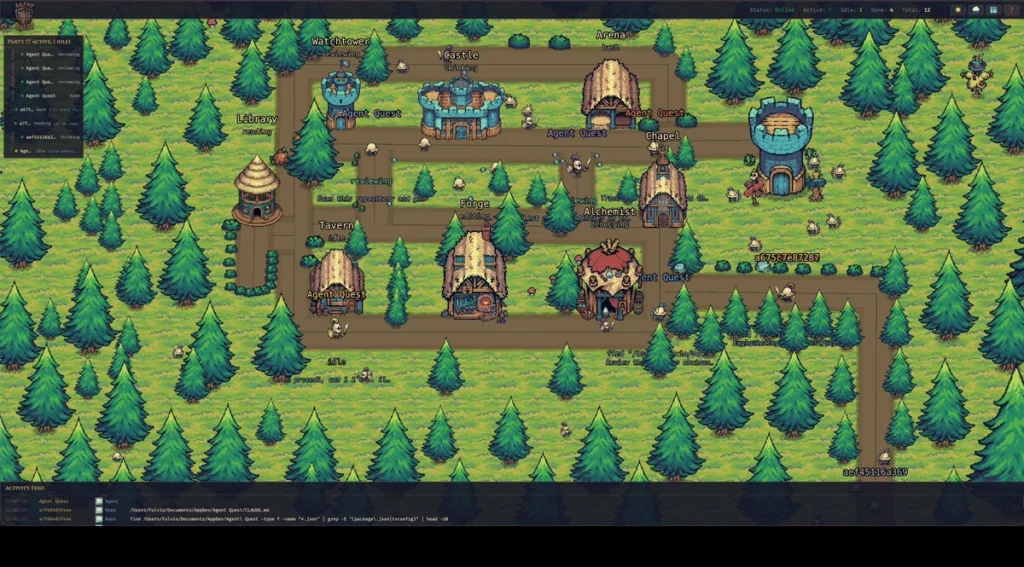
First check whether the services are running
Keep the terminal that started Agent Quest visible. With default ports, open http://localhost:4445 on the host computer. If the interface does not load, inspect the startup output before investigating agents.
The backend has a small health endpoint:
curl http://localhost:4444/api/healthA running server returns JSON with status, agents and clients. A zero agent count is different from a connection failure. A successful health request confirms that this endpoint is reachable; it does not prove that every provider or browser connection is working.
Check installation discovery and recent activity
If the interface says no Claude Code or Codex installation was detected, confirm that Agent Quest is running as the same local user as your coding tool. The documented provider paths are Claude Code project logs under supported ~/.claude* directories and Codex rollouts under ~/.codex/sessions/.
Start or resume a session and ask it to inspect a familiar file. Watch for new activity in Agent Quest. Do not move or delete your provider directories to experiment: they contain the coding tools’ own data.
In the implementation reviewed for this guide, the Codex provider initially skips rollout files last modified more than three hours ago. It can reconsider one when the file grows again. An old conversation therefore need not appear just because its file exists. This is an implementation detail that may change in later releases.
If the server works but the scene does not update
Check the browser’s connection state and the server terminal. The client receives session snapshots and changes over WebSocket. With default settings, the browser interface is on 4445 and the backend on 4444; loading the interface alone does not establish that the WebSocket is connected.
If you customized ports or server URLs, compare your settings with the repository’s Configuration section. On a second device, localhost refers to that device, not to your Mac. Use the host’s printed LAN URL and the dedicated second-screen guide.
Resolve the specific startup error
For bun: command not found, install Bun using its official instructions. For a missing dependency error, run bun install from the Agent Quest root. For missing artwork, run:
bun run check:assetsThis reports which bundled assets are absent. Inspect that report before restoring files, especially if you customized assets locally.
For EADDRINUSE on macOS, identify the process using the default ports:
lsof -nP -iTCP:4444 -iTCP:4445 -sTCP:LISTENIf it is another Agent Quest instance, use the existing dashboard or stop that instance normally in its terminal. Do not terminate an unfamiliar process just to free a port.
After a correction, repeat one small check: load the interface, confirm health, then produce a recognizable session event. If you need to report an issue, include versions and the exact error while removing private paths, prompts and command output.
Based on the project README and source at revision 6c32b29, reviewed 10 October 2026. Check the current repository for later changes.