Give the dashboard its own space
Open Agent Quest at http://localhost:4445 on the computer running it. Move the browser window to the display where you want the overview. On a Mac, use the browser window’s green control and choose the full-screen option if available.
This uses the browser and macOS window controls; Agent Quest does not need a separate fullscreen feature. A maximized window is also useful if you prefer to keep the menu bar or other controls visible.
If your second screen is an iPad opening its own browser, use the existing LAN guide instead. The address localhost points to the device on which you type it, so it is not the way to reach your Mac from an iPad.
Keep the overview readable
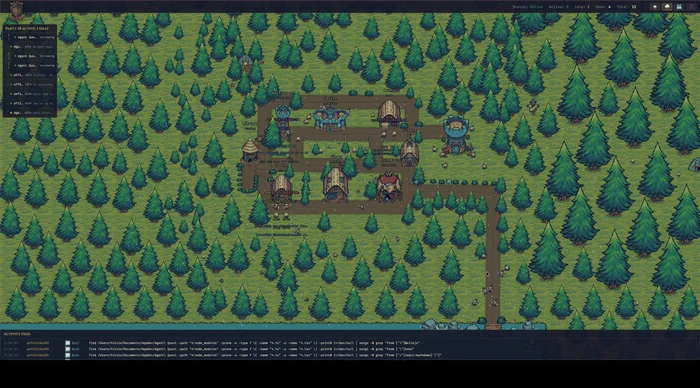
The village maps different activity categories to places. Reading takes agents to the Library, editing to the Forge, and commands to the Arena. Keep a few familiar sessions visible so that movement gives you context rather than becoming background decoration.
The party panel offers Collapse to icons. The activity feed has Full, Compact and Close choices. Those controls let you reduce text when you want a more visual view and bring details back when you need them.
Start with the feed in Compact and the party visible. If an agent needs attention, open its details and return to the coding tool for the full result. A less crowded screen should still let you identify the work behind each hero.
Make the scene your own
The toolbar includes night and rain controls, and the built-in map editor lets you customize the village layout. These give the dashboard a different atmosphere without changing the coding tasks it represents.
For daily use, combine the visual overview with optional sound alerts. The village is useful when you glance at it; a turn-finished chime can tell you when to look back. You do not have to keep your eyes on either display throughout an agent’s task.
Choose a layout and effects you enjoy, then check that they remain readable at your normal viewing distance. A second screen is most useful when it answers a quick question without becoming another interface to constantly manage.
Treat it as a live workspace, not a screen saver
The scene offers movement in place of a static terminal view, but Agent Quest is not a macOS screen saver and does not promise protection against image retention. Buildings, panels and other elements can remain fixed. Keep your normal display-sleep and screen-lock settings.
When you leave your desk, lock the computer as usual: a dashboard can display project names and activity. When you stay at the desk, the benefit is a live companion to your work—an overview on one screen, your editor or reading on the other.
For the next step, configure sound alerts so the dashboard can draw your attention when a main session needs you.
Based on the project README and source at revision 6c32b29, reviewed 10 October 2026. Check the current repository for later changes.
Try it with your own sessions
Next: Hear When Claude Code or Codex Needs You: Agent Quest Sound Alerts