
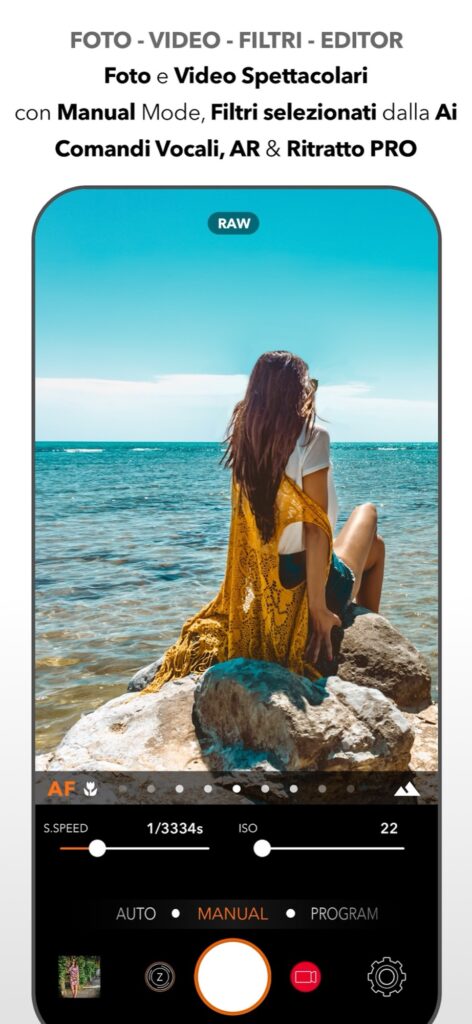
Set up a simple scene
Start with a mug or another stationary object near a window. Place the iPhone on a stable support and open DSLR Camera on the phone. Check the framing, focus and exposure before stepping away.
Use Auto for the first attempt. Once the connection works, try manual exposure if the scene needs it. Changing the support, shutter speed and watch connection at the same time makes problems harder to diagnose.
Open the app’s own remote
Open DSLR Camera’s companion app on the Apple Watch paired with your iPhone. Use its shutter button: the command is sent to the phone, which remains the device taking the photo. This is DSLR Camera’s remote, separate from Apple’s Camera Remote app.
Take a test picture and check on the iPhone that it was saved and the subject is sharp. The watch also offers a self-timer. Try it before a group photo so you know how much time you have to get ready. Do not assume a fixed connection range.
Know what remote triggering can solve
A remote command avoids touching the phone during capture. It cannot freeze a moving person, stabilize a shaky support or correct missed focus.
With a still subject and a stable phone, you can experiment with longer exposures. For portraits, account for the person’s movement too: an excessively long exposure can blur a face even when nobody touches the iPhone. Inspect the result at a larger scale before repeating the series.
If the command does not arrive
Bring the devices closer together, check that they are paired and reopen DSLR Camera on your iPhone and its companion on the watch. Try the phone’s shutter first: if local capture fails, the remote is not the first thing to troubleshoot.
For an urgent picture, use the phone’s self-timer instead. The exercise is to take two pictures of the same scene, one by touching the phone and one from the watch, and check whether remote triggering helps preserve framing. It does not guarantee better image quality in every situation.
Availability and further reading
Based on the App Store feature description and implementation reviewed on 10 October 2026. Screens and availability may vary by version and device.
Paid app; available controls and formats depend on the device.
Continue with the other device guide
All guides Follow the sequence or choose the problem you want to solve. Scheduled lessons become links when published.Your learning path: from capture to editing