
Visual Intelligence and a personal inventory
Apple’s Visual Intelligence guide describes ways to learn about what you see, including looking up objects, searching for similar images and working with text. A personal inventory answers a more specific question: which of my saved belongings is this, and where did I put it?
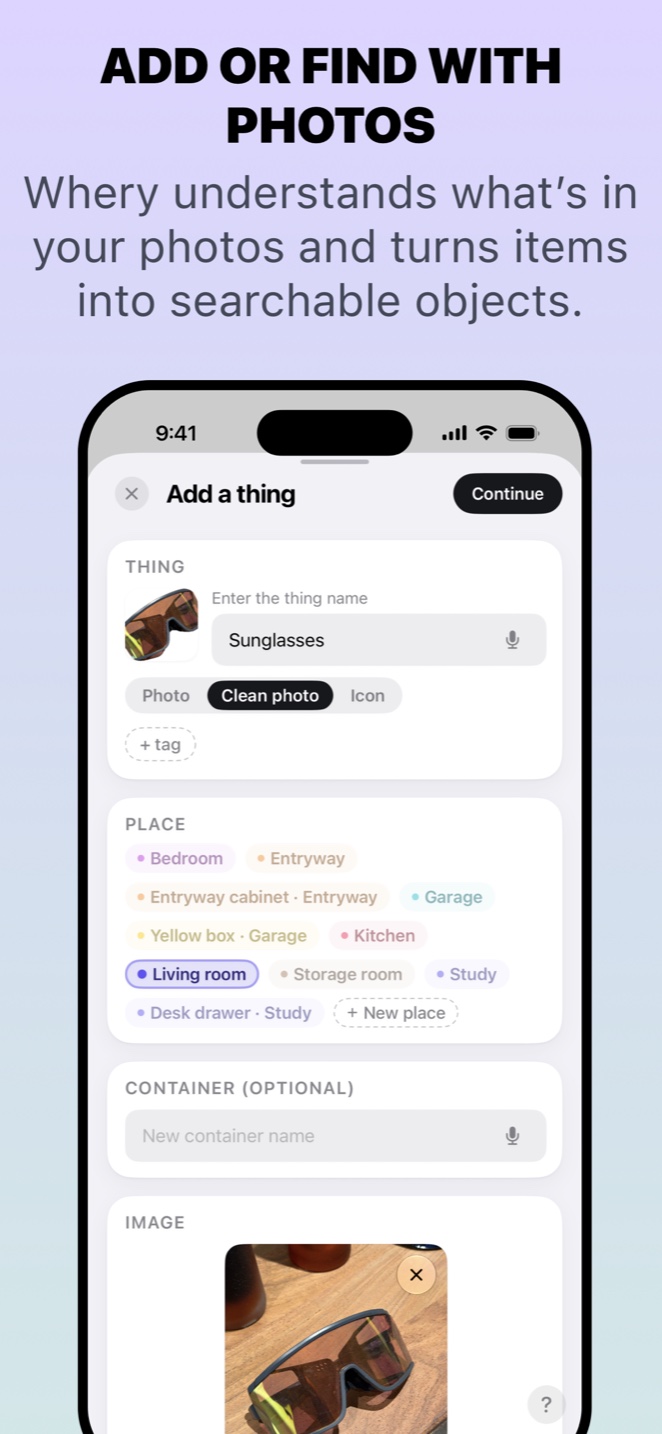
Whery’s photo workflow happens inside Whery. The steps below do not require or imply a connection between its collection and Apple’s Visual Intelligence interface. Start by taking or choosing a photo in the app, then review the proposed items before deciding what to keep.
Photograph something you can recognise later
Try a small object with distinctive details, such as a replacement part for your coffee machine. Use a clear image in good light. Include a useful label if it distinguishes that part from similar ones, and avoid an overcrowded background that makes the intended subject unclear.
Whery can help identify objects and extract useful details, including text and barcodes. Check the proposed name: “coffee machine spare seal” will be more useful to you than a vague label such as “accessory”. Add your own description or tags when necessary. Photo recognition can make mistakes; your review connects the suggestion to the actual item you own.
Save a place, not just a picture
Add the storage location before completing the record. “Kitchen, cupboard beside the oven, small parts pouch” gives you a route back to the object. Keep the photograph as a visual check when several parts look alike. Update the saved place when you move the pouch.
Later, search with the name or details you remember. Whery combines saved names, aliases, tags, notes and places with semantic search. A precise record provides more useful information than expecting AI to infer a location you never recorded.
Build the habit with a small collection
Start with three replacement parts you rarely use but would struggle to identify. Save each one, verify its location and try searching for it. AI feature availability depends on compatible hardware and software; consult the App Store listing for current requirements.
Download Whery free to try the workflow. The app introduction also explains optional AR pins and other ways to save and find your things.
Sources and availability
Facts checked on 20 September 2026. Apple: Visual Intelligence; Whery on the App Store.

Save your first item today
Whery keeps what you own and where you put it in one searchable place, with text, photos, voice and optional AR pins.
Download Whery free on the App StoreFree to download and use, with optional Premium purchases. Feature availability varies by device and software.