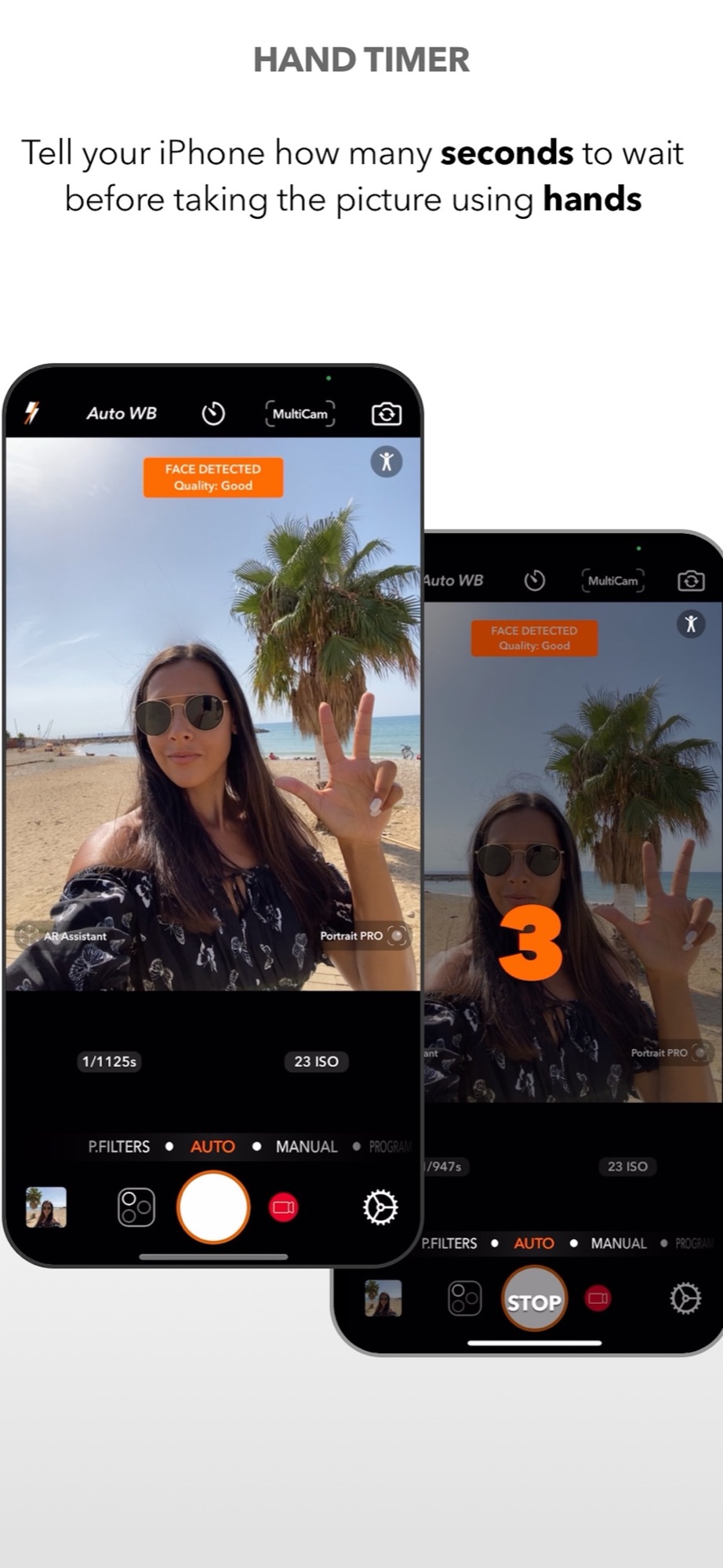
Show the seconds with your fingers
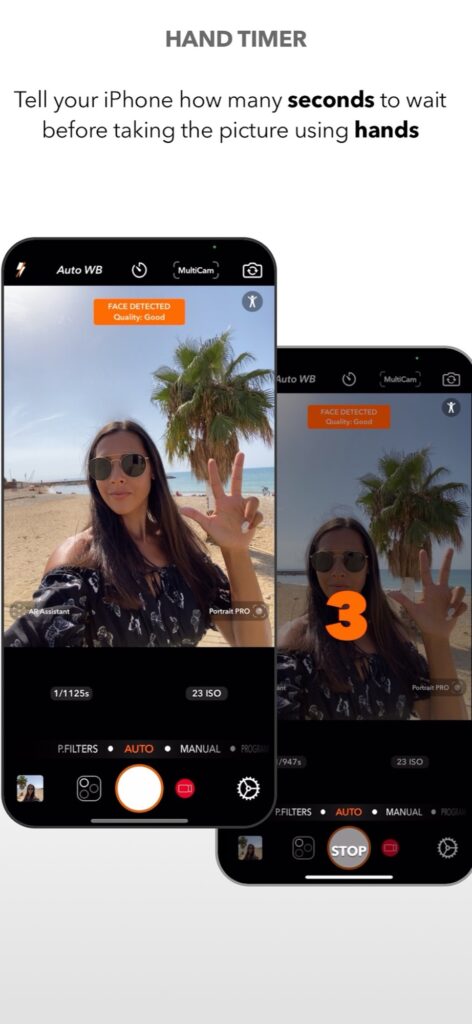
Hand Timer in DSLR Camera recognises hands in the frame. Hold up from one to five fingers and the app reads the number as the seconds to wait before taking the picture. Three fingers means a three second countdown, with the number shown on screen.
It is useful whenever the phone is out of reach: on a tripod, leaning on a rock at the beach, or on a shelf at a family dinner.
The shaka selfie
There is also a shortcut for an immediate shot. Show the shaka sign, thumb and little finger extended, and the app takes the selfie straight away, without a countdown.
The recognition runs on the device using Apple’s Vision framework, which detects hand poses in the camera image.
Tips for reliable results
Keep your hand clearly visible, away from your face and with the fingers apart. Good light helps, as it does for any camera feature that reads the scene. If several people are in the frame, agree on who gives the signal.
Frame the picture first and make sure the phone is stable. For selfies, the app also offers Face Tracking, which keeps faces at the right brightness, and Selfie Comparison, which evaluates the faces in your shots to help you pick the best one.
When your hands are busy, there are two more remote options: the Apple Watch remote and Siri Shortcuts.
See all the shooting tools in the DSLR Camera overview.
Rehearse before the group arrives
Place the phone on a stable support, frame one person and test the gesture in even light. Use three clearly separated fingers and keep the hand away from the face. Check that the countdown starts before changing pose. Repeat the same test at your intended group distance.
If recognition fails, improve light and hand visibility first. Do not ask every person to signal simultaneously. Keep a conventional timer or the app’s watch remote as a fallback. After capture, check the edges of the group and faces rather than judging success only by whether the shutter fired.
Sources and availability
Facts checked on 20 September 2026 against the DSLR Camera listing on the App Store and the developer’s feature notes. Gesture recognition depends on light, distance and device.
Your learning path: from capture to editing
Follow the sequence or choose the problem you want to solve. Scheduled lessons become links when published.
- Manual camera controls on iPhone: shutter speed, ISO, focus and white balance
- Night photography on iPhone: using shutter speed and ISO after dark
- Use Apple Watch as a remote shutter for DSLR Camera
- Hands-free selfie timer on iPhone: start the countdown with a gesture
- AR Portrait: using the iPhone LiDAR sensor for creative portraits — scheduled: 23/10/2026
- Bokeh on iPhone: control background blur before and after the shot — scheduled: 30/10/2026
- How to take the perfect jump shot with your iPhone — scheduled: 06/11/2026
- Shooting RAW on iPhone: when it helps and how to edit the file — scheduled: 13/11/2026
- Edit a photo on iPad with DSLR Camera: a practical order of adjustments
- AI photo filters on iPhone: how Predictive Filters choose for you — scheduled: 20/11/2026
Take control of your iPhone camera
Manual controls, RAW, 200+ filters and an advanced editor in one app for iPhone, iPad and Apple Watch. Updated since 2014.
Get DSLR Camera on the App StorePaid app. Feature availability varies by iPhone model, camera and iOS version.