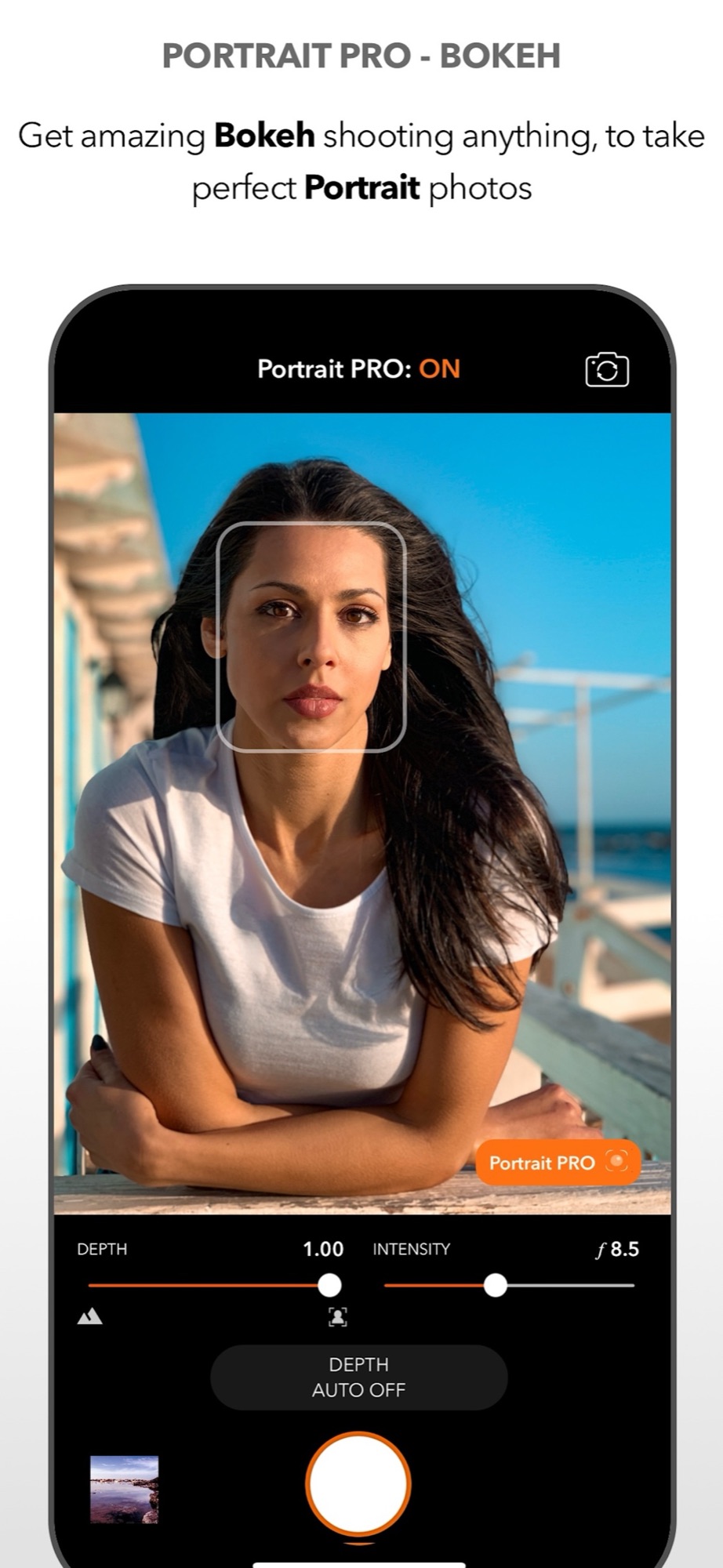
Adjust the blur while you shoot
Portrait PRO in DSLR Camera adds a digital aperture to the viewfinder. While framing, you adjust the intensity of the blur and the depth at which the effect is applied, and you see the result live. It works for people, and also for objects, plants or a plate of food.
A light blur keeps the place recognisable; a strong one isolates the subject. Decide according to how much the background tells about the moment.
Change focus after the shot
Version 12 adds two tools for photos you have already taken. Refocus, on supported iPhones and compatible photos, lets you tap a detected subject to keep it sharp while the rest of the image softens, and adjust the intensity.
Aperture works on photos with depth information: choose the focus point and adjust the blur with a digital aperture control from f/16 to f/1.4. Lower numbers mean a more blurred background, as on a camera lens.
Practical advice
Depth effects need separation. Move the subject away from the wall behind it, and get closer to the subject yourself. Watch the edges: hair, glasses and thin objects are the hardest parts, so check them at full size before sharing.
Dual Filter goes one step further and lets you correct the subject and the background separately.
The DSLR Camera overview lists all the portrait tools, including AR Portrait for LiDAR devices.
Compare subtle and strong blur
Keep the same subject and framing, then make versions with low and stronger background blur. Inspect hair, ears, glasses and gaps between fingers at the same viewing size. A convincing result keeps subject edges natural; more blur is not automatically better.
Digital blur is an image-processing effect, not proof of a physically wider lens aperture. Increasing real distance between subject and background can also improve separation. If outlines look artificial, reduce the effect or choose a simpler background rather than hiding the error with more blur.
Sources and availability
Facts checked on 20 September 2026 against the DSLR Camera listing on the App Store, version 12.0.1 release notes. Refocus and Aperture depend on the iPhone model and on the depth data in each photo.
Your learning path: from capture to editing
Follow the sequence or choose the problem you want to solve. Scheduled lessons become links when published.
- Manual camera controls on iPhone: shutter speed, ISO, focus and white balance
- Night photography on iPhone: using shutter speed and ISO after dark
- Use Apple Watch as a remote shutter for DSLR Camera
- Hands-free selfie timer on iPhone: start the countdown with a gesture
- AR Portrait: using the iPhone LiDAR sensor for creative portraits
- Bokeh on iPhone: control background blur before and after the shot
- How to take the perfect jump shot with your iPhone — scheduled: 06/11/2026
- Shooting RAW on iPhone: when it helps and how to edit the file — scheduled: 13/11/2026
- Edit a photo on iPad with DSLR Camera: a practical order of adjustments
- AI photo filters on iPhone: how Predictive Filters choose for you — scheduled: 20/11/2026
Take control of your iPhone camera
Manual controls, RAW, 200+ filters and an advanced editor in one app for iPhone, iPad and Apple Watch. Updated since 2014.
Get DSLR Camera on the App StorePaid app. Feature availability varies by iPhone model, camera and iOS version.